Learn about assistive technology for people with reading disabilities, dyslexia, low vision, blindness and other disabilities that make reading, writing, and other tasks difficult. Written by someone who uses assistive technology to read and write.

Showing posts with label ios accessibility. Show all posts

12/28/14

KNFB Reader App: Amazingly Fast and Accurate


The KNFB Reader is a text recognition app that is shockingly fast. Take a picture of a newspaper article or practically any printed text and within a couple of seconds the app will be reading the text back to you. A "couple of seconds" is no exaggeration, the KNFB Reader app is that fast. For people who are visually impaired or have difficulty reading, the KNFB Reader is perfect for accessing printed text.

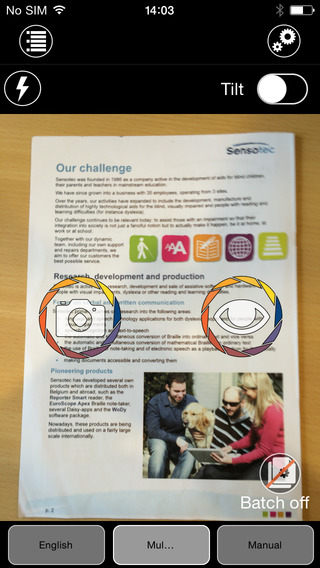
Once a document is properly framed, only one more step is necessary to start reading the document. Simply press the take picture button and within seconds the app will recognize the text within the document using optical character recognition (OCR) and begin reading it with text-to-speech. No need to crop or adjust the image, once the picture is taken the app does all the work. All recognition is done locally on the device so personal data is never transmitted over the internet.

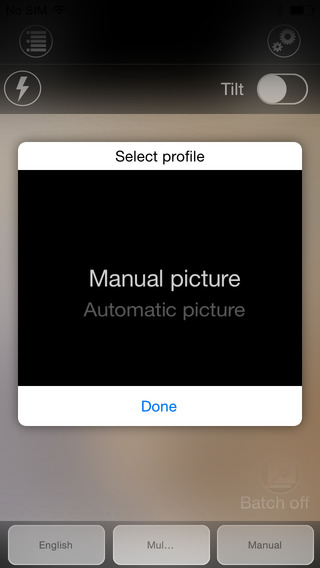
The KNFB Reader app has a number of features that help users capture images of text. For users who are blind and visually impaired the app offers a "field of view report" which offers spoken feedback to help frame the document in the view finder. This feature will let a users know how many corners of the document are within the field of view and if the document is tilted. In addition, the app offers automatic picture taking mode which will automatically snap a picture of a document when it is properly framed.  The app also includes the ability to capture multi-page documents with batch mode. The field of view feature worked well with loose paper documents, but I did not have success using the automatic capture feature with books.

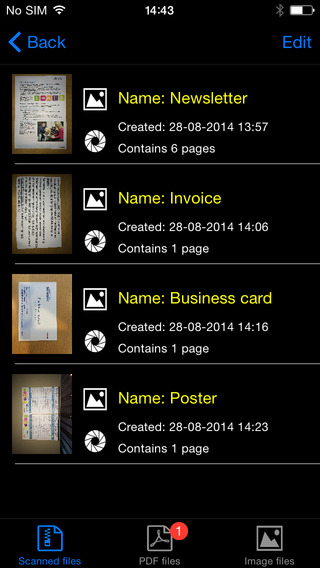
In addition to using the device's built in camera to capture images, users can also import image based PDF documents and JPG files to be recognized with the app. For example, using the "open in" feature of Google Drive will allow a user to import an image to be recognized and read with KNFB Reader.

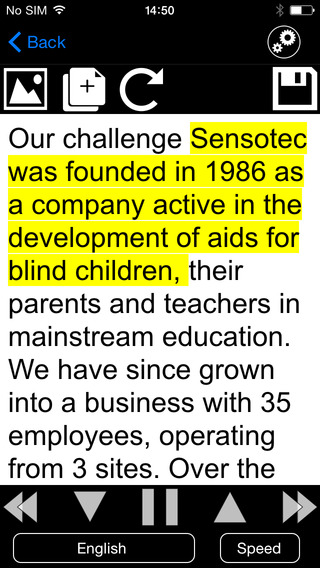
Text is can be highlighted word-by-word or line-by-line as it is being read aloud by the text-to-speech voice. Users can adjust the layout and appearance of the text and change the speaking rate of the text-to-speech voice. Only the default iOS text-to-speech voice is available, so users hoping to use another voice will have to export the text to another app. The built-in text reader also lacks the ability to highlight or annotate the document, so once again users looking for this functionality will need to export the text to a different app.

While the KNFB Reader app is faster and more accurate than competing products such as Prizmo, Prizmo does include some useful features that KNFB Reader does not. Prizmo, which is significantly less expensive, includes the ability to export PDF documents. This means a user can take a picture of a document, have the text recognized and any images on the page retained by Prizmo, so that it looks identical to the printed page. KNFB reader, by contrast strips away images, and only retains the printed text. If PDF export is an important feature to you, Prizmo may be a better option. Click here to learn more about Prizmo. 

If you are looking for a text recognition app with great speed and accuracy, I think you will be quite pleased. If The KNFB reader fits your budget, you won't be disappointed. KNFB Reader costs $100, to download the app from the App Store click here. It is compatible with the iPhone 4S and newer and the iPod touch fifth generation. Click read more below to view screen shots of the app.


9/18/14

New in iOS 8: Start Text-To-Speech Easily with Speak Screen


iOS 8 includes some new accessibility features and many improvements to existing features. One of the new features is called Speak Screen which allows users to quickly have text on the screen spoken aloud using text-to-speech. Speak Screen is included in addition to Speak Selection which allows users to highlight text and press speak to have content read aloud.

Unlike Speak Selection, which requires text to be highlighted first, before reading the text aloud,  Speak Screen does not require users to highlight the text they wish to have spoken. Especially for longer articles or emails, this highlighting process could be time consuming and frustrating.

Speak Screen solves the problem by speaking all text on the screen with a simple two-finger swipe down from the top of the screen. After swiping down with two fingers, text starts to be read aloud with text-to-speech, and the Speak Screen menu appears on top of your current app. This menu allows you to stop and start speech, adjust the text-to-speech speaking rate, and navigate through the text being spoken.  Instead of having to re-highlight text if you want to hear a paragraph again, Speak Screen offers simple navigation buttons. The menu can also be hidden to allow full view of the screen and accessed again through a small floating button. Just like Speak Selection, Speak Screen has the option to highlight text as it is spoken, making it easier for sighted readers to follow the text as it is being spoken.

Just like all of the accessibility features in iOS 8, Speak Screen can use the Alex text-to-speech voice which many users prefer. While Alex is a very high quality text-to-speech voice beware, it takes up almost one gigabyte of storage. Speak Screen can also be activated through Siri by saying "speak the screen." To enable Speak Screen on a device with iOS 8 go to Settings > General > Accessibility > Speech and then toggle on Speak Screen. Speak Screen is only available for devices running iOS 8 or higher.

9/17/14

Apple Releases iOS 8 with Major Accessibility Improvements


Today, Apple released iOS 8 the latest software update for iPhone, iPad, and iPod Touch. The new software, which is available for free, includes many new features and enhancements, including new accessibility features and tools that will allow developers to make the next generation of apps. Apple has not stood still in terms accessibility and as a result, iOS 8 is truly the most accessible and inclusive iOS version to date.

Some of the most exciting new accessibility features are included in iOS are ready to use right after updating. These features are developed by Apple, and most are found under Settings > General > Accessibility.

Speak Screen is one of the new accessibility features that allows users to quickly and easily have content on the screen read with text-to-speech with a simple two finger swipe down gesture. Unlike older versions of iOS which required users to highlight sections that they wished to be spoken, Speak Screen does not require any highlighting. Users can even ask Siri to “speak the screen” to start text-to-speech.

Apple’s highly acclaimed screen reader, VoiceOver, also received some substantial updates. Now, VoiceOver users can enter text using a system-wide virtual six-dot Braille keyboard. Zoom is also vastly improved with windowed magnification and filters. Guided Access and AssistiveTouch have seen smaller improvements.

In addition, all accessibility features that use speech will now be able to use the Alex text-to-speech voice that many Mac users enjoy. All of these features are included with the iOS 8 update. Stay tuned for in depth information about the features discussed above in the coming days and weeks.

With iOS 8, Apple has given developers tools to make the next generation of great apps. Hopefully, assistive app makers will be able to take advantage of these new features to help people with various needs. Developers can now make system wide keyboard apps. iOS keyboards will now be able to enter text into any app if the developer updates the app for iOS 8. For example, Fleksy and SwiftKey are expect to receive an update shortly to enable text entry into any app. Developers can also add the ability to unlock their app using Touch IDfinger print recognition for devices with Touch ID. Lastly, developers can create extensions to allow their app to perform functions within other apps. For example, a translation extension could be used within Safari to eliminate the need to switch apps.

These features open up a whole new world to app developers and it will be exciting to use some of the new apps that take advantage of these new developer features. While some apps have already been updated to take advantage of the new developer features in iOS, many have not been. Check back to read about some apps that are taking advantage of these new developer features in ways that can help people with disabilities.

iOS 8 is a free update that you can download now. Stay tuned to the Assistive Technology Blog to learn more about the new included accessibility features and about apps that take advantage of the new developer features.

7/10/14

How Apple Could Improve the App Store for VoiceOver Users

Potential  Feature for App Store
Would you buy a song that may or may not play, a car that may or may not fit in your garage, or a remote that could or could not work with your TV? Probably not, but a similar problem is facing VoiceOver users (and users of other built-in accessibility features) every time they look for a new app on the App Store. This user base is growing quickly due to high quality accessibility features that Apple builds into every iOS device. Currently, the App Store offers no way for users to know if the app will be accessible before hitting the buy button. For VoiceOver users, this means throwing away money if the app turns out to be inaccessible. While the issue of app accessibility has been getting a lot of buzz lately, hopefully Apple can implement some solutions to the problem before and until app accessibility is virtually ubiquitous.

One way to help users know if an app is accessible before hitting the buy button is to add an accessibility report to the apps App Store page. Just as App Store pages prominently displays if an app is compatible with Game Center. This report could be generated during Apple's app review process and consist of a simple rating scale to help users determine if the app is accessible for their needs. As Rene Ritchie of iMore.com suggested, maybe Apple would decide not to recommend any apps that are not fully accessible.

There are other solutions such as allowing developers to create an app accessibility preview alongside the full blown app previews coming with iOS 8. Developers could walk users through how the app interacts with VoiceOver or other accessibility features directly in the App Store using audio and video.

Hopefully Apple and app developers continue to keep in mind when updating their products.

7/26/13

Sprint Introduces Mobile Captioning App for Hearing Impaired


Wireless service provider Sprint has released a new iOS app that captions conversations in real time. The app uses computerized speech recognition service to caption the caller on the other end. The user can hear the other caller if they are able to and use the captions if they are unable to hear the person on the other end of the line. Then they can respond by voice. It is unclear how accurate the automated captioning will be with people with heavy accents or in loud environments. Sprint says the following about the app:
"Wireless CapTel(R) by Sprint(R) is a free app available for individuals with hearing loss and understandable speech to place calls CapTel services on iOS. Using state of the art voice recognition technology, CapTel delivers captions of everything your caller says, while you listen (with your residual hearing) and speak directly to your caller."
The Wireless CapTel service is free for Sprint users with the Everything Data Plan. In addition to the iPhone Wireless CapTel is compatible with select Android smartphones from Sprint. To uses the service Sprint customers must download the app on the App Store. Click here to learn more about Wireless CapTel from Sprint.

3/31/13

Quizlet Flashcard App: Create, Share, and Study


Quizlet is a website where users can create, share, and study flashcards. Users can make a study set on the internet and then study them on a computer or using the free Quizlet iOS app. The app is compatible with iPhone and iPod touch. Teachers can also make a study sets for their classes. Quizlet also offers pre-made flashcard sets for popular vocabulary books, SAT vocabulary, and more. Flashcards can also include images to aid in studying. Once the study set is open you can view the terms in list mode or in flashcard mode. Watch the video above to learn more. Both modes include speak buttons which speak the terms in a high quality text-to-speech voice. Quizlet is compatible with Apple's VoiceOver. Click here to download the free app.


Click read more below to view screenshots of the app in action.


11/28/12

Nook App for iOS Updated to Support VoiceOver and Zoom


Great news, the Nook app for iPhone, iPad, and iPod Touch is now accessible to the blind, visually impaired and people with print disabilities. The updated app now supports VoiceOver and Zoom. VoiceOver and Zoom are built in accessibility features in iOS. To learn more about VoiceOver click here. With VoiceOver you can have the book read aloud using text-to-speech. Oddly enough the update makes the Nook app more accessible than current Nooks. Serious kudos to Barns & Noble's for making their app accessible. To download the app for free click here.

Click read more below to view more screenshots.


11/21/12

Slow Down iOS Home-Click Speed


The iPhone, iPad, and iPod Touch home button does more than just take you do the home screen. With a quick double tap it can bring up the multitasking pane or music controls. With a quick tripple click it can be used to start an accessibility feature such as VoiceOver, Zoom, Assistive Touch, or Guided Access. If you find it difficult or impossible to double or tripple click the home button quickly you can slow down the speed in settings. To slow down the home-click speed go to settings > general > accessibility > home-click speed.  This setting is only available in iOS 6. To learn how to upgrade to iOS 6 click here. This setting will allow you to press the home button much slower in order to activate the double or tripple click actions. Watch the above video to learn more.

9/19/12

iOS 6 Released, Download Now


Apple has released iOS 6 with over 200 new features as a free upgrade. iOS is the operating system that runs on the iPhone, iPad and iPod Touch. Included in the 200 features are new accessibility features. Among the new features are Guided Access, Speak Selection with highlighting and VoiceOver enhancements. To upgrade go to settings > general > software update. Watch the above video to learn how to update to iOS 6. iOS 6 is available for the iPhone 3GS, iPhone 4, iPhone 4S, iPhone 5, iPad 2, the new iPad, iPod Touch 4th generation and iPod Touch 5th generation.

To learn more about the accessibility features of iOS 6 click here. To view images of iOS 6 in action click read more below.


12/22/11

iOS 5 Tip: Look Up Any Word


A new feature in iOS 5 allows you to get a definition of any word from any app. To get a definition of a word simply select the word by holding down on it for a couple of seconds and then tap define. A dictionary will appear with that word defined. When you are done tap done to return to your app.