Learn about assistive technology for people with reading disabilities, dyslexia, low vision, blindness and other disabilities that make reading, writing, and other tasks difficult. Written by someone who uses assistive technology to read and write.

Showing posts with label low vision. Show all posts

8/9/14

Redbox to Make Some Kiosks Accessible to the Blind


Popular video rental service Redbox agreed in a settlement to make 4,000 of their 35,900 kiosks located in California accessible to people who are blind or visually impaired. The service, which is commonly found in supermarkets and other public areas, is inaccessible to blind or visually impaired users. As part of the agreement, Redbox agreed to add headphone jacks, text-to-speech output, and tactile keyboards to kiosks. The roll-out of accessible video rental boxes will be gradual and is planed to take longer than two years. In the interim, Redbox has also agreed to provide phone support to help blind customers navigate the rental process. It is not clear if Redbox plans to add more DVDs with audio descriptions to benefit its new larger customer base of visually impaired users, but such a plan would seem to make sense. The settlement deal will inevitably increase Redbox's potential customer base by providing access to more people with disabilities. Unfortunately, the settlement seems to only cover a small fraction of Redbox kiosk in California. Hopefully, other kiosk companies will make their services accessible as well.

10/9/13

New in iOS 7: System Wide Large Type


Apple’s new mobile operating system is out for iPhone, iPad, and iPod touch. iOS 7 includes many useful features for all users regardless of ability. One feature that can benefit people with visual impairments is system wide large font. With this feature enabled a user can select a larger font size for use in all compatible apps; the only caveat being that app developers must build in support for this feature. Once widely implemented by app developers this feature will make it easy to have the perfect text size in all your apps. Instead of selecting a preferred font size in each app users will be able to choose a font size once for all their compatible apps.

To enable larger type go to settings > general > accessibility > larger type.

Large text in NYTimes App

5/12/13

NaviDys Browser for iPad Makes Reading the Web Easier


NaviDys is a web browser for the iPad. The app allows full customization of a website's font, line spacing, letter spacing, and text size. Currently it is only available on the iPad not the iPhone or iPod Touch. While it feels very much like the built in Safari browser that comes with the iPad, NaviDys has features that make it easier to read the web. For people with low vision the ability to enlarge fonts and increase spacing is beneficial. Also, for dyslexics NaviDys includes the Dyslexie font. But using a third party browser does not come without trade offs. You cannot open links from other apps directly into NaviDys. Unlike Safari NaviDys does not include a reader mode to remove distractions from web pages. NaviDys costs $2.99 from the App Store.

Click read more below to view screenshots of NaviDys.


12/30/11

ChromeVis: Free Tool for Chrome Users With Low Vision


ChromeVis is a simple Chrome extension for users with low vision. ChromeVis is simple to use and has many customization options. To use ChromeVis highlight the text you want magnified and then click on the ChromeVis icon in the top right of your Chrome window. To customize the appearance of ChromeVis right click on its icon and select options. To download ChromeVis for free click here.

12/28/11

Add Quick Text-to-Speech Button to Microsoft Word


Microsoft Word has a hidden text-to-speech button built in. To access add the text-to-speech button to the quick access tool bar click on the down arrow in the top left corner of the screen. Next click on more commands and then click on all commands from the drop down menu. Finally click on speak from the list and then press add. To use the text-to-speech feature select the text you wish to have read and click on the text-to-speech button you just added to the top left corner of the screen. The text will be read allowed instantly. Click the button again to stop the text-to-speech. Watch the video above to learn more. Click read more below for step by step instructions.


11/8/11

Oregon Using the iPad to Assist Disabled Voters


Oregon is testing the iPad to assist disabled voters and allow them to vote privately. Some Oregon voters that are unable to vote using paper ballets will be able to vote using the iPad in tomorrow's election as part of a pilot program. Voters with visual impairments, physical disabilities, dyslexia and other disabilities that make voting with paper ballets difficult will be able to vote using a custom iPad app. The app will have the ability to enlarge font size, improve contrast and read text aloud to assist disabled voters. The app also works with VoiceOver for improved accessibility. Blind voters will be able to connect their Braille displays to the iPad via Bluetooth in order to read the ballets. Users that use Bluetooth accessories will be able to connect them to the iPad in order to vote.  The app will allow disabled voters to make their selections privately without election officials knowing which candidates the voter selected. Election officials made the following comments about voter privacy. 
"Some people want to vote independently, and they're the ones that we're talking to." 
Laws require people with disabilities to have equal access and privacy while voting.


9/9/11

Read2Go App Gets Updated


Bookshare's Read2Go app was recently updated with more features and better performance. If you are unfamiliar with Bookshare click here. The Read2Go app allows Bookshare members to download books directly their iPad, iPhone or iPod Touch. Once books are downloaded you can read them using built in text-to-speech. For more on Read2Go click here and here. One new feature in the update enables the app to handle larger books including text books. Another useful feature allows the audio to keep reading even if your device is locked or Read2Go is in the background. Yet another feature enables schools to transfer books to Read2Go via  iTunes. Read2Go is available in  the App Store for $19.99. Read2Go is a must have app for Bookshare members who wanted a portable way to read their books. To read the release notes click read more below.
  Notes from Read2Go iTunes page.

What's New in Version 1.0.1.1

• Playback while locked – allows you to continue Read2Go audio while your screen is locked. Turn on Playback while locked in Audio Settings.
• Background playback – allows you to continue reading with Read2Go audio when you exit the app. You can use the audio controls to pause and resume playback by left swiping the multitasking bar. This feature does not apply when using VoiceOver to read the content of books and periodicals.
• Improved stability – book reading is more stable, particularly for larger books. Further enhancements are planned for the next release.
• Page-by-page content loading – allows you to reduce memory usage and improve performance. Users can still revert back to section level loading. Turn Display by Page on and off in Visual Settings. Playback while locked – continue reading with Read2Go audio while screen is locked.
• Transfer books from computer – Organizational accounts can now transfer books, particularly books with images, via iTunes.
• Auto Play – allows you to set books to automatically play upon opening them via Read2Go audio. This setting is available only from the main application Settings and not from the book settings.
• Improved operability with VoiceOver - among the many fixes, you can now navigate to any section, page or bookmark and begin reading via VoiceOver. We are evaluating other improvements for future releases.
• Fix for audio issues with iPad mute switch. 


8/24/11

ZoomReader Review (Giveaway)


ZoomReader is a combination of a text-to-speech reader, OCR (optical character recognition) reader and zoom magnifier. The app is compatible with the iPhone 4. ZoomReader can help people with many disabilities and challenges including low vision, blindness and dyslexia. The app uses the iPhone 4's camera to magnify printed text up to four times its original size to allow people with low vision to better see the text. ZoomReader can also change the contrast when the iPhone is held over the text to make it easier to read. ZoomReader also includes a lighting fast OCR feature that converts printed text into electronic text that can be read aloud. If you are unfamiliar with OCR click here. Once the text is converted to a digital format it can be read aloud by an included text-to-speech voice.

One tip for improving the OCR quality is to turn on the camera flash. You can also add new text-to-speech voices for $2.99. The app has many customization options that allow you to change the appearance of the reading experience. Another killer feature is the voice activation powered by Nuance. To turn on speech activation touch the microphone in the top left. The voice activation feature allows you to take pictures and zoom in on text with the sound of your voice. For example you can say "take picture" to snap a picture of a document. To learn more about Nuance's accurate speech-to-text engine click here. The ZoomReader app is perfect for people with low vision, dyslexia or blindness. The app is $19.99 in the iTunes app store.

Two lucky winners can win this app for free by checking back on this site for giveaway information and promo codes. Watch my video review above for a demonstration. Click read more below to see screen shots and how to videos. Do not forget to check the Assistive Technology Blog in the next few days for giveaway details.


8/18/11

Braille iPad Case


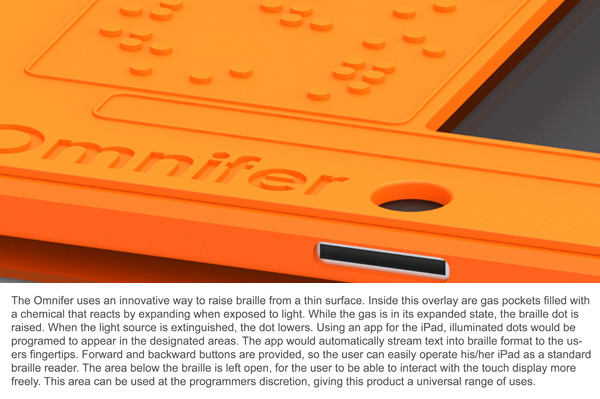
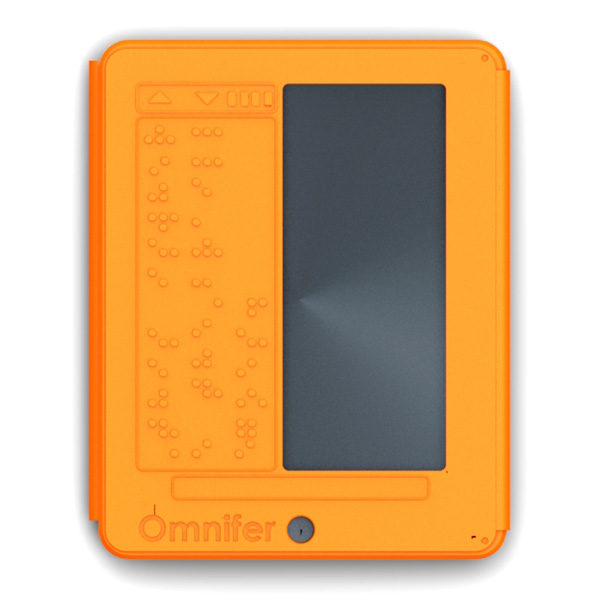
The iPad has many accessibility features built into the software. iOS includes VoiceOver, white on black and zoom. To learn more about iOS accessibility click here, here and here. A new concept case has a built in refreshable Braille display. The Braille display is very thin and does not add much wight. To learn more about thin refreshable Braille displays click here. The Braille display covers half of the screen for non-sighted users this is not a problem. The Braille iPad case is not for sale as of this post. To see more images of the Braille iPad case click read more below.


7/29/11

AccessText Helps Students Get Accessible Textbooks


AccessText is a way that higher education students with print disabilities can get accessible books. AccessText provides textbooks to higher education students free of charge to the student. But the institution must pay $500 membership fee. AccessText is similar to Bookshare but Bookshare also has novels and periodicals. Also Bookshare has a free text-to-speech software but with AccessText you must use your own text-to-speech software. Eight major publishers have teamed up to provide books through AccessText. AccessText is another great tool for getting accessible material for higher education students with a print disability. 

7/27/11

Imagine Cup Idea Can Help Students With Low Vision


For students who  have low vision taking notes can be challenging if not impossible. A group of students from Arizona State University have come up with a solution. The solution gave them first place in the 2011 Imagine Cup sponsored by Microsoft. Their solution, called Note-Taker, can magnify the board and display a live view of the board on a tablet computer. Note-Taker is not available for sale at the time of this post. For people with low vision Note-Taker offers hope and should be on the market some time in the near future.   

7/21/11

Mac OS X Lion Includes New Accessibility Features

Apple released Mac OS X Lion to customers yesterday. Lion brings some features of the iPad and iPhone to Mac computers. Lion is available on the Mac App Store for $30. The new operation system includes 250 new features including a number of new accessibility features. Some of Lion’s new accessibility features include VoiceOver improvements, improved support for refreshable Braille displays and a new zoom features for people with low vision. Some of the VoiceOver improvements include better built-in voices and the ability to add your own high-quality voices. Lion also improves better drag and drop support for VoiceOver users. Yet another feature called “VoiceOver Activities” allows you to set custom voices and voice speeds for different tasks. “For example, you can create an activity to use a certain voice and faster speaking rate when you’re shopping online catalogs. Create a second activity to use a different voice and slower speaking rate when you’re reading online newspapers.” Quote taken from Apple.com. Lion also include a new setting that allows users to control the verbosity setting for their Braille display. Lion with its new accessibility features and other new features is a worthy upgrade for any Mac user. Mac OS X 10.7 Lion is $30 from the Mac App Store.

7/4/11

iPad Apps for People With Low Vision


The iPad, iPhone and iPod Touch are great tools for many people. It can help people with dyslexia, low vision and blindness. The iPad 2, iPhone and 4th generation iPod Touch all have cameras that can help people with low vision. With the iPad 2, iPhones and 4th generation iPod Touch their built in cameras can enlarge text or pictures. The iPad 2 and iPod Touch's cameras are not very high quality but they are still able to enlarge text with digital zoom. The Magnifier app can enlarge images up to nine times. (Keep in mind that the zoom is digital so image quality is lost as you zoom) Check out a list of apps blow the break.
Apps mentioned:

Magnifier - $0.99
HAL - Free
MapQuest - Free
LookTel - $1.99
QuickVoice - Free
Voice Reminders! - Free

7/2/11

iOS VoiceOver Overview


VoiceOver is a screen reader made by Apple and used on their iOS devices. The feature allows for people with low vision, dyslexia and who are blind to more easily use their iPhone, iPad and iPod Touch. The feature comes with all iOS devices. When VoiceOver is on you must use gestures to navigate around your device. To enable VoiceOver go to settings then general then accessibility and then VoiceOver. Under the accessibility menu you can enable VoiceOver when you click the home button three times. VoiceOver can help people that can not see the screen as well as people who want to listen to a news article. For a complete overview of VoiceOver go to www.apple.com/accessibility/. If you have suggestions about how Apple could make VoiceOver or any of their accessibility features better email them at accessibility@apple.com.